Custom Walker Menus with Lua
When I switched to Wayland early this year, I had to wave goodbye to my trusty Rofi and find a new application launcher. Enter Walker - a fast, customizable launcher that comes with a bunch of useful menus out of the box. The important bits - Desktop applications, file browsing, calculator - are all there.
But what about the less-important-but-still-kind-of-nice-for-my-workflow parts? What about custom menus? Of course you can build those!
Walker & Elephants
Walker is the pretty face you see on screen - the interface that displays menus and handles your input. But the interesting stuff happens behind the scenes with Elephant, Walker’s data provider backend.
Elephant is a service that runs in the background and provides all the data Walker displays - applications, files, clipboard entries, and so on. Each menu you see in Walker corresponds to an Elephant provider.
Now, if you wanted to create a completely custom data source, you could build your own Elephant provider. That’s what all the built-in menus are - small Go applications that implement the provider interface. But don’t you worry, you don’t need to know Go or mess with Protocol Buffers to create simple custom menus. You can build those using small Lua scripts instead.
The documentation for custom menus is a bit sparse and scattered between the official GitBook and the provider source code on GitHub (and probably other places I forgot about). Let me save you some digging and show you what you actually need to know.
Setting Up Custom Menus
First, you need the elephant-menus provider installed. Without it, none of your custom Lua scripts will be picked up by Elephant.
yay -S elephant-menus
systemctl --user restart elephant.service
systemctl --user status elephant.service
Next, update your Walker configuration to include the menus provider:
# ~/.config/walker/config.toml
[providers]
default = [
  "desktopapplications",
  "websearch",
  "menus", # Add the menu provider
]
Your custom menus live in ~/.config/elephant/menus/. Elephant auto-discovers them, but you’ll need to restart the service whenever you add a new menu.
systemctl --user restart elephant.service
Building Your First Custom Menu
Let me show you a practical example. I use Tmuxinator to manage my Tmux sessions, and I wanted a quick way to launch them from Walker. Here’s what that looks like:
-- ~/.config/elephant/menus/tmuxinator.lua
Name = "tmuxinator"
NamePretty = "Tmuxinator"
Icon = "utilities-terminal"
Terminal = true
Cache = false

Action = "tmuxinator start '%VALUE%'"

function GetEntries()
	local entries = {}

  -- Path to your Tmuxinator executable
	local handle = io.popen("/usr/local/bin/tmuxinator list")
	local output = handle:read("*a")
	handle:close()

	local first_line = true
	for line in output:gmatch("[^\r\n]+") do
		if first_line then
			first_line = false
		else
			for project in line:gmatch("%S+") do
				table.insert(entries, {
					Text = project,
					Subtext = "Tmuxinator Session",
					Value = project,
					Icon = "utilities-terminal",
				})
			end
		end
	end

	return entries
end
You can probably tell, custom menus aren’t too complicated. You just need to adhere to the interface elephant expects:
- Name/NamePretty: The identifier and display name for your menu
- Icon: An icon name. Per default, Walker uses your system icon theme.
- Terminal: Set to
trueif the action should run in a terminal - Cache: Whether to cache the results - useful for static data.
- Action: The command to execute when an entry is selected.
%VALUE%gets replaced with the selected entry’sValuefield - GetEntries(): A Lua function that returns a table of menu entries
Also, each entry needs:
- Text: The main display text
- Subtext: Additional information shown below
- Value: The value passed to the
Actioncommand - Icon: An optional icon for the entry
A More Complex Example
Here’s another menu I built to help me remember Hyprland keybindings. This one parses JSON output from hyprctl and even executes the shortcuts themselves when selected:
-- ~/.config/elephant/menus/keybinds.lua
local json = dofile(os.getenv("HOME") .. "/.config/elephant/utils/json.lua")
Name = "keybinds"
NamePretty = "Keybinds"
Icon = "preferences-desktop-keyboard-shortcuts"
Cache = false
Action = "hyprctl dispatch %VALUE%"
local function get_mods(modmask)
local mods = {}
if (modmask / 64) % 2 >= 1 then
table.insert(mods, "")
end -- Super
if (modmask / 8) % 2 >= 1 then
table.insert(mods, "")
end -- Alt
if (modmask / 4) % 2 >= 1 then
table.insert(mods, "")
end -- Ctrl
if (modmask / 1) % 2 >= 1 then
table.insert(mods, "")
end -- Shift
return mods
end
function GetEntries()
local handle = io.popen("hyprctl binds -j")
local output = handle:read("*a")
handle:close()
if not output or output == "" then
return {}
end
local status, data = pcall(json.decode, output)
if not status then
return { { Text = "JSON Error", Subtext = tostring(data) } }
end
local entries = {}
for _, bind in ipairs(data) do
if bind.description and bind.description ~= "" then
local mods = get_mods(bind.modmask)
local key_icons = table.concat(mods, " ")
local key_name = bind.key or ""
local display_keys = key_icons
if #mods > 0 then
display_keys = key_icons .. " + " .. key_name
else
display_keys = key_name
end
table.insert(entries, {
Text = bind.description .. " (" .. display_keys .. ")",
Subtext = "Shortcut: " .. display_keys,
Value = (bind.dispatcher or "") .. " " .. (bind.arg or ""),
Icon = "preferences-desktop-keyboard-shortcuts",
})
end
end
if #entries == 0 then
table.insert(entries, {
Text = "No labeled binds found",
Subtext = "Add descriptions to binds in hyprland.conf using 'bindd'",
Value = "exec notify-send 'Hint' 'Use bindd in your config!'",
})
end
return entries
end
A couple of things worth noting: You can’t require Lua modules the usual way. Instead, you need to use dofile() with an absolute path. I keep helper libraries like json.lua in ~/.config/elephant/utils/ and load them with dofile(os.getenv("HOME") .. "/.config/elephant/utils/json.lua").
Testing Your Menus
You can verify that Elephant picked up your custom menu without opening Walker:
elephant query "menus:tmuxinator;;10;false"
elephant query "menus:keybinds;;10;false"
This is useful for debugging. If the menu doesn’t show up, check the elephant service logs:
journalctl --user -u elephant.service -f
Once your menus are working, you probably want quick access to them. You can bind them to prefix triggers in Walker’s config:
# ~/.config/walker/config.toml
[[providers.prefixes]]
prefix = "!"
provider = "menus:tmuxinator"

[[providers.prefixes]]
prefix = "?"
provider = "menus:keybinds"
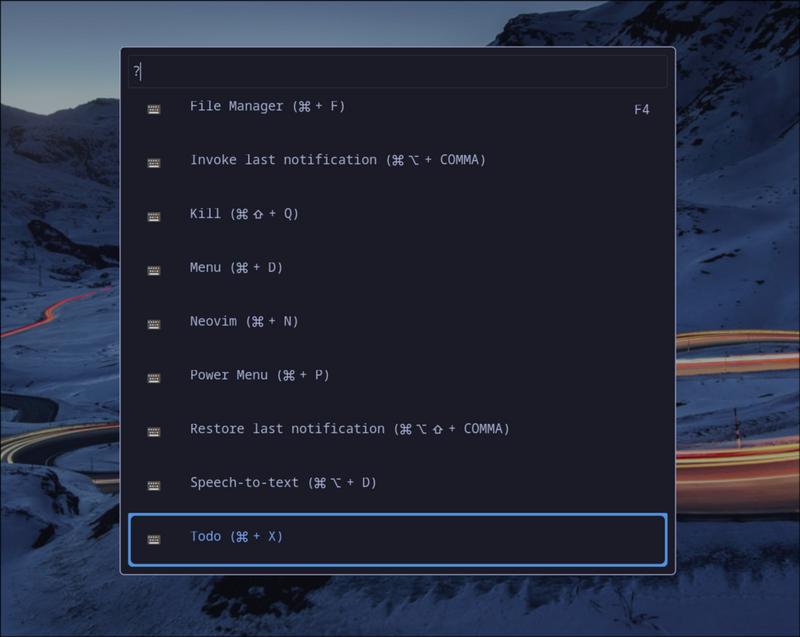
The possibilities are pretty broad here. You could build menus for anything. Someone built a Iconify browse. Look here, someone built a session menu for Opencode. Let your imagination run wild.
If you can write a shell command that outputs data, you can turn it into a Walker menu.